
Managing the users on your Maine Oxy account helps ensure that the right team members have access to ordering, billing, and account tools.
This guide walks you through adding new users, updating existing users, and removing users who no longer need access.
Adding a New User:
Adding a new user to your account is simple and helps streamline your company’s ordering workflow.
1. Log in to your account on SHOP.MAINEOXY.COM.
2. Open the Account Menu by clicking the silhouette icon to the right of the search bar.
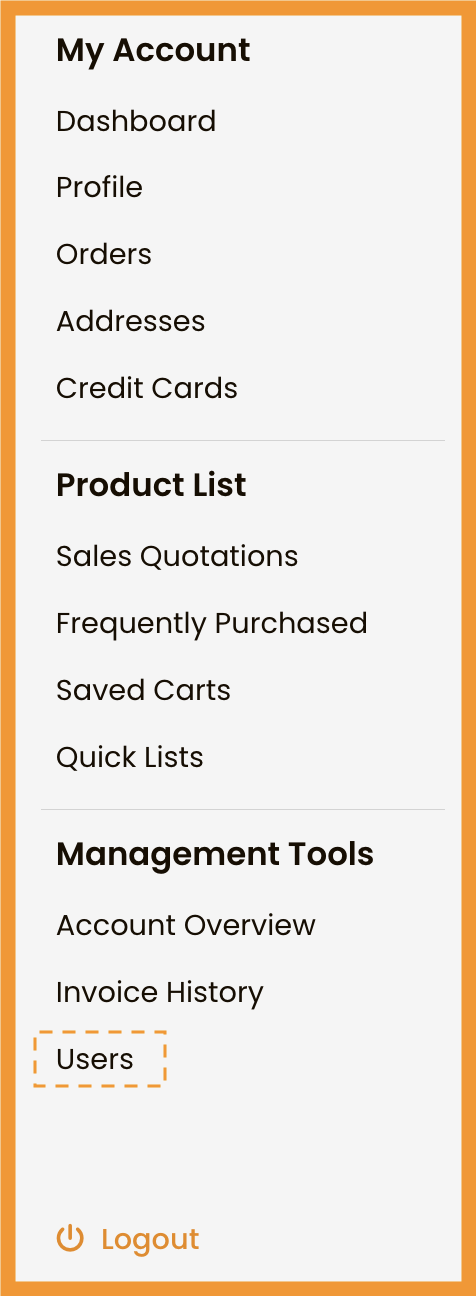
3. Select Users.
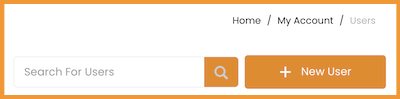
4. Click the New User button
5. Enter the user's information
- Name
- E-mail address
- Phone #
Select "Send Welcome Email" to send the new user an invitation to set up their password .
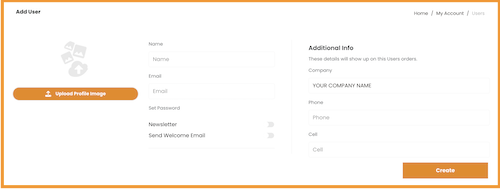
7. Save the new user to send them an invitation to join the account.
Creating users this way keeps your team organized and ensures everyone has the access they need to place orders or manage account details.
How to Edit a User Profile
As roles change within your company, you may need to update a user's information or permissions.
From the Users page, you will be able to:
- Update profile information (name, email, phone)
How to Edit a User
- Open your Account Menu and select Users.
- Choose the user you want to update.
- Make the necessary changes to their profile or access level.
- Save your updates.
Editing users ensures everyone always has the appropriate access required for their current role.
Disabling a User Profile
Keeping your user list up to date is important for account security and clean recordkeeping.
Disabling a User
Disabling keeps historical order and invoice records intact while preventing the user from logging in.
How to disable a user:
- Go to the Users section in your Account Menu.
- Select the user.
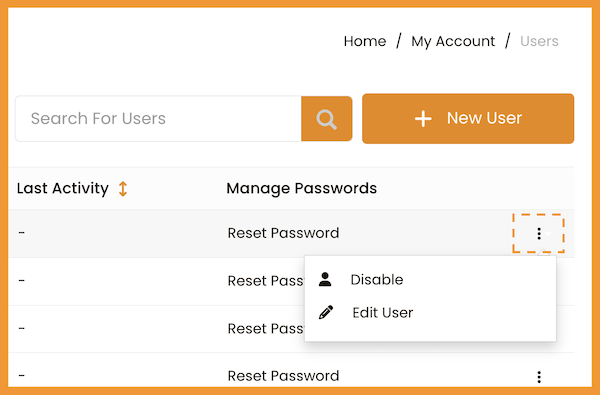
- Toggle the Active setting off or choose Disable User.
- Save your changes.
Still Have Questions?
We’re always here to help. If something wasn’t covered don’t hesitate to reach out.
Please send your questions to shop@maineoxy.com, and we will get back to you as soon as possible.
OTHER SUPPORT TOPICS
Managing the users on your Maine Oxy account helps ensure that the right team members have access to ordering, billing, and account tools.
This guide walks you through adding new users, updating existing users, and removing users who no longer need access.
Adding a New User:
Adding a new user to your account is simple and helps streamline your company’s ordering workflow.
1. Log in to your account on SHOP.MAINEOXY.COM.
2. Open the Account Menu by clicking the silhouette icon to the right of the search bar.
3. Select Users.
4. Click the New User button
5. Enter the user's information
- Name
- E-mail address
- Phone #
Select "Send Welcome Email" to send the new user an invitation to set up their password .
7. Save the new user to send them an invitation to join the account.
Creating users this way keeps your team organized and ensures everyone has the access they need to place orders or manage account details.
How to Edit a User Profile
As roles change within your company, you may need to update a user's information or permissions.
From the Users page, you will be able to:
- Update profile information (name, email, phone)
How to Edit a User
- Open your Account Menu and select Users.
- Choose the user you want to update.
- Make the necessary changes to their profile or access level.
- Save your updates.
Editing users ensures everyone always has the appropriate access required for their current role.
Disabling a User Profile
Keeping your user list up to date is important for account security and clean recordkeeping.
Disabling a User
Disabling keeps historical order and invoice records intact while preventing the user from logging in.
How to disable a user:
- Go to the Users section in your Account Menu.
- Select the user.
- Toggle the Active setting off or choose Disable User.
- Save your changes.
Still Have Questions?
We’re always here to help. If something wasn’t covered don’t hesitate to reach out.
Please send your questions to shop@maineoxy.com, and we will get back to you as soon as possible.